06 Apr 2026

Most AI-generated UI looks the same. Generic layouts, arbitrary color choices, fonts that have nothing to do with your brand. The output tells you AI made it from ten feet away.
The reason is always the same: the AI had no brand context. It was working from nothing, filling in the gaps with defaults. The result is a competent layout that belongs to no one.
There's a fix for this - and it starts with your Figma style guide.
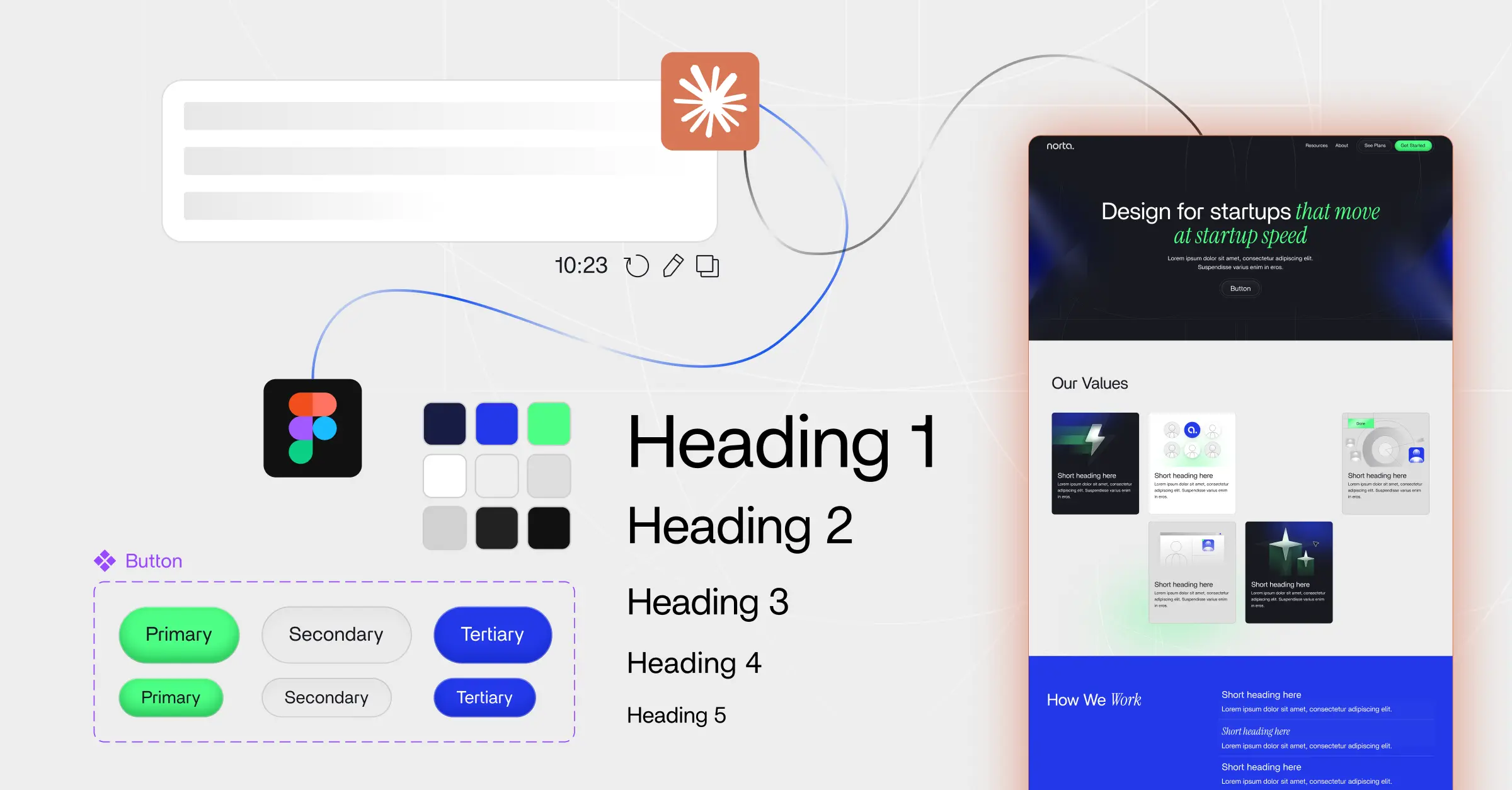
When Claude can read your actual brand tokens - your colors, your type scale, your spacing system, your components - it stops guessing. The output stops looking generic and starts looking like yours.
MCP stands for Model Context Protocol - it's the standard Anthropic built for connecting Claude to external tools and services. The Figma MCP integration gives Claude direct read and write access to your Figma files.
That means Claude can navigate your file, read your published styles and components, understand your design system, and place elements into frames - all without you copying and pasting anything.
It's the difference between describing your brand to Claude and actually showing it your brand. One produces approximations. The other produces something that could credibly ship.
The MCP connection is only as useful as what Claude finds when it opens your file. If your Figma has a cluttered page with some colors somewhere and a few components buried in frames with no names, Claude will produce a cluttered output.
But if your Figma has an organized style guide - published color styles with a clear naming system, published text styles for every typographic level, documented spacing tokens, a component library with buttons, cards, and inputs - Claude can work the way a well-briefed human designer would.
This is exactly what we build for every client at norta as part of the design system setup. Not because it makes Claude work better (though it does). Because it makes the whole team work better - designers, developers, marketers, and now AI.

Step 1 - Connect Claude to Figma. Enable the Figma MCP in your Claude settings. You'll need a Figma personal access token and the file URL you want Claude to work in. Once connected, Claude can read and write to your Figma file directly from the conversation.
Step 2 - Point Claude at your style guide. Direct Claude to the style guide page in your Figma file. Ask it to read and confirm what it finds - colors, fonts, spacing, components. This confirmation step is important: it catches misreads before Claude builds a full page on wrong assumptions.
Step 3 - Define the page brief. Tell Claude the goal of the landing page, the target audience, the primary CTA, and the sections you need. The more specific the brief, the more useful the output. "Design a homepage for a B2B SaaS tool for FinOps teams" gets better results than "design a landing page."
Step 4 - Let Claude build, then review. Claude places elements in Figma using your brand tokens. Review the output the same way you would a junior designer's first draft - check brand compliance first, layout logic second, copy third. The skill file below gives Claude a strict checklist it runs before considering any design complete.
You don't need a 40-page brand bible. You need four things to be clearly defined and published in Figma:
Color styles - published with a consistent naming system. Primary/500, Neutral/100, Accent/300. Not "blue" and "dark blue." Claude reads the names, not just the hex values, so clear naming produces clearer decisions.
Text styles - published for every level you use. H1 through H4, body regular, body small, label, caption. If Claude has to guess what font size a subheading should be, it will - and it will guess wrong.
A component library - at minimum: buttons in all variants, a card, an input field, and your navigation. Claude will use these instances directly rather than recreating them. This is what keeps the output consistent with your actual product or site.
A spacing reference - a documented base unit (8px, 4px) and a note on how section padding is handled. One frame with labeled spacing examples is enough.
The teams that get the most out of this workflow are the ones who already invested in a proper design system. The AI doesn't replace that investment - it multiplies it. A well-structured style guide that used to benefit just your designers now also benefits every AI tool you connect to it.
We've packaged this entire workflow as a Claude Skill - a structured prompt file that tells Claude exactly how to read a Figma style guide, confirm its understanding, plan the page, and build it using only brand tokens. It includes a pre-handoff checklist Claude runs before marking any design complete.
Works with any Figma file that has a reasonably organized style guide. The better the style guide, the better the output.
MCP stands for Model Context Protocol - a standard built by Anthropic that lets Claude connect directly to external tools and services. The Figma MCP integration gives Claude read and write access to your Figma files. Once connected, Claude can navigate pages, read your published styles and components, and place design elements into frames - all from within a Claude conversation, without any manual copy-pasting.
Claude can produce a layout without a style guide, but it will make generic choices - arbitrary colors, default fonts, inconsistent spacing. The style guide is what turns Claude from a template generator into a brand-aware designer. When Claude can read your actual color tokens, type scale, spacing system, and components, it stops guessing and starts building designs that look like they belong to your brand.
You need four things published and organized in Figma: color styles with a clear naming system, text styles for every typographic level you use, a basic component library (buttons, cards, inputs, navigation), and a documented spacing reference. You don't need a 40-page design system - a clean, labeled style guide page is enough. The more structured it is, the more accurate and on-brand Claude's output will be.
Most AI design tools generate layouts based on prompts alone, using their own design defaults. The Figma MCP workflow is different because Claude reads your actual brand - your real color tokens, your actual font choices, your existing components. The output lives inside your Figma file alongside your other work, uses your component instances directly, and reflects your specific brand rather than a trained aesthetic. It's brand-aware generation, not generic template production.
You need basic Figma familiarity - enough to navigate a file, review what Claude has built, and give feedback. You don't need to be a designer or know how to build components yourself. If your company already has a Figma file with a style guide (many do, especially if you've worked with a design agency), you can use this workflow without any design skills. Claude does the building; you review the output.
Any single-purpose landing page works well: product pages, feature pages, campaign pages, pricing pages, waitlist pages. The workflow is best suited to pages with a clear conversion goal and a defined structure - hero, features, social proof, CTA. It's less suited for complex multi-state UI like dashboards or app interfaces, where component logic and interactions require more nuanced design decisions than a one-shot generation can handle.
Norta works with a small number of startups to ensure focus, quality, and true partnership.
Limited spots available