13 Apr 2026

You open the CMS editor. You fill in the title field. You paste the body copy into the Rich Text field and spend ten minutes reformatting everything that broke in the paste. You set the category, the date, the meta description. You hit save, then remember to publish, then remember to publish the whole site.
It works. It's just slow, manual, and easy to get wrong - especially if your posts use styled components like callout boxes, tables, or download banners that live inside HTML embeds.
There's a faster way, and it runs entirely from a Claude conversation.
We publish all of norta's resources posts this way. The post you're reading right now was created, formatted, and published without anyone logging into the Webflow CMS editor.
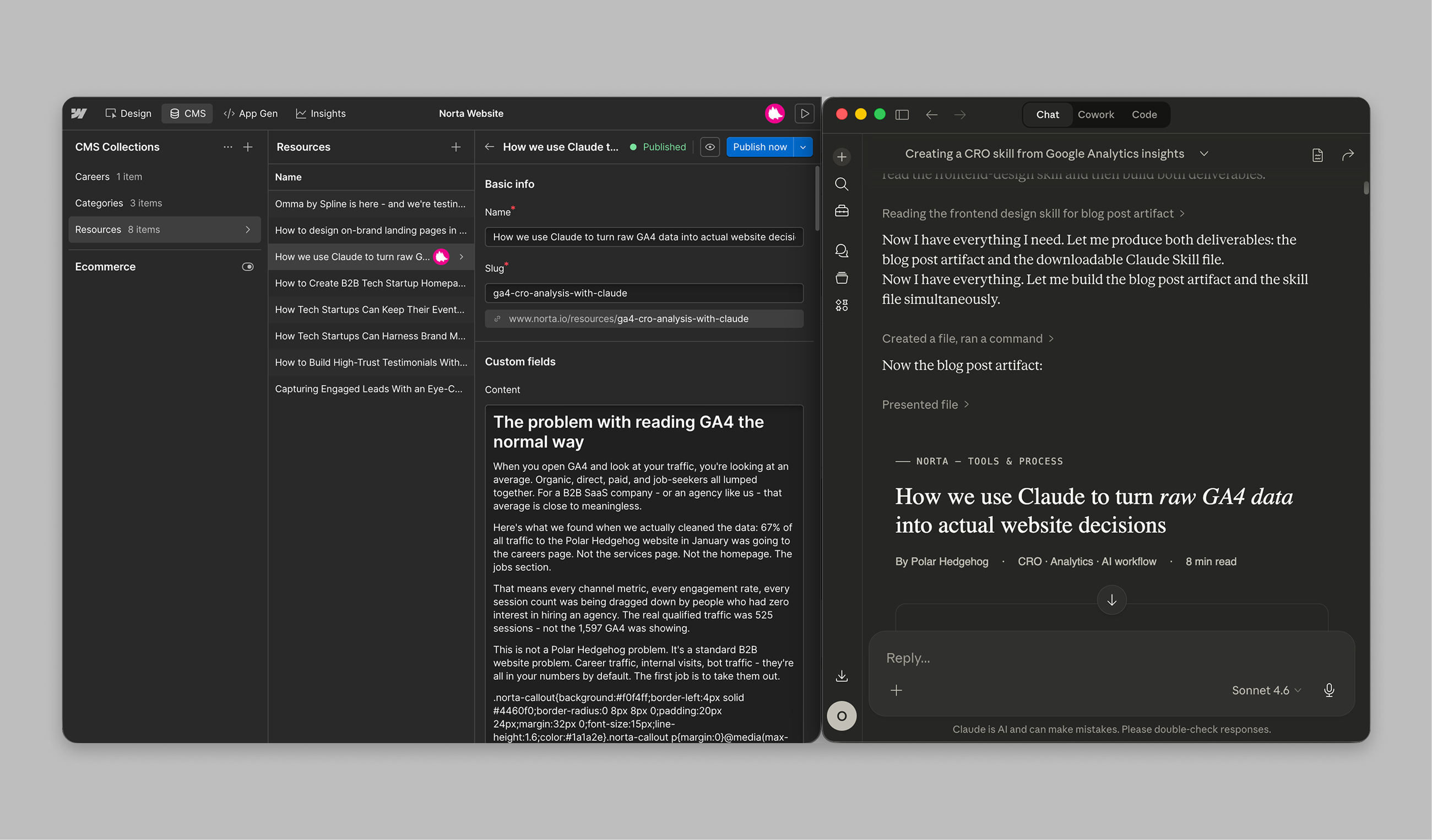
MCP stands for Model Context Protocol - the standard Anthropic built for connecting Claude to external tools. The Webflow MCP gives Claude direct API access to your site: it can read your collections, map your field schemas, create and update CMS items, publish content, and trigger a full site publish - all without leaving the conversation.
This isn't Claude helping you write content and then you going to paste it in. Claude does the whole thing. You give it the brief, it handles the rest.
Step 1 - Connect Claude to Webflow. Enable the Webflow MCP in your Claude settings under Integrations. Once connected, Claude can see all your sites and collections without any additional setup.
Step 2 - Point Claude at the right collection. Tell Claude which site and which collection you want to work in. It reads the field schema - all the field names, types, and requirements - before touching anything. It won't guess what fields exist.
Step 3 - Give Claude the content brief. Paste in your text, give it a title, category, meta description, and publish date. Or ask Claude to write the post from scratch with a topic and target audience. Either way works.
Step 4 - Claude creates the draft. It maps every field correctly, formats the Rich Text as proper HTML, sets the category reference by ID (not name), and creates the item as a draft so you can review it first.
Step 5 - Review and publish. Check the draft in the Webflow CMS editor. When you're happy, tell Claude to publish - it publishes the item and triggers a full site publish to push it live.
If your Rich Text content contains styled components - callout boxes, tables, two-column layouts, download banners - never edit those blocks manually in the Webflow CMS editor. Webflow's editor breaks out of the HTML embed context the moment you type inside it, causing the surrounding HTML and CSS to render as raw visible text.
Always make changes via Claude and the API. This is exactly what the skill below enforces.
Publishing a blog post goes from a 20-minute manual process to a two-minute conversation. Non-technical team members - marketers, founders, content managers - can publish directly to Webflow without learning the CMS interface, without worrying about breaking anything, and without needing a developer on standby.
The skill file below packages this entire workflow into a prompt you can load into any Claude conversation. It covers collection discovery, field mapping, content formatting rules, the HTML embed limitation, and the publish sequence - so every post comes out correctly structured, every time.
The most important thing the skill does is prevent mistakes. It tells Claude to read the schema before writing anything, create as a draft before publishing, and never edit HTML embeds through the Webflow editor. Those three rules are what make the workflow reliable at scale.
Connect Claude to your Webflow site via MCP, load the skill, and give Claude your content brief. It handles the rest.
MCP stands for Model Context Protocol - a standard built by Anthropic that lets Claude connect directly to external tools and services. The Webflow MCP gives Claude read and write access to your Webflow site: it can list collections, read field schemas, create and update CMS items, publish content, and trigger a full site publish - all from a conversation.
No. Claude uses the Webflow MCP to connect directly to your site's CMS via the API. You give it the content brief in the conversation, it creates the item in Webflow, sets all the fields correctly, and publishes it. You review the draft in the Webflow CMS editor before it goes live - but you never have to touch a form or publish button yourself.
Webflow's Rich Text field accepts HTML, which means Claude can create structured content with headings, paragraphs, callout boxes, two-column layouts, tables, and download banners. The one important rule: CSS must live in Webflow's global custom code (Site Settings > Custom Code), not inside the Rich Text field itself. Webflow strips style tags from Rich Text content on save.
Never edit HTML embed blocks manually inside the Webflow CMS editor. Webflow's Rich Text editor breaks out of the embed context when you type inside it, causing the surrounding HTML and CSS to render as visible text. Any changes to content that contains styled components - callout boxes, tables, prompt blocks, download banners - should always be made via the API, which is exactly what Claude does through the Webflow MCP.
Any Webflow CMS collection works: blog posts, resources, case studies, team members, products, services, portfolio items. Claude reads the collection's field schema before writing anything, so it knows which fields are required, what types they expect, and which reference fields need IDs rather than plain text values.
After creating and publishing the CMS items, Claude triggers a site publish via the Webflow API to push changes to your custom domain. If the publish endpoint returns a rate limit error (which Webflow occasionally does), Claude waits and retries. You can also trigger a publish manually from the Webflow Designer as a fallback.
Norta works with a small number of startups to ensure focus, quality, and true partnership.
Limited spots available